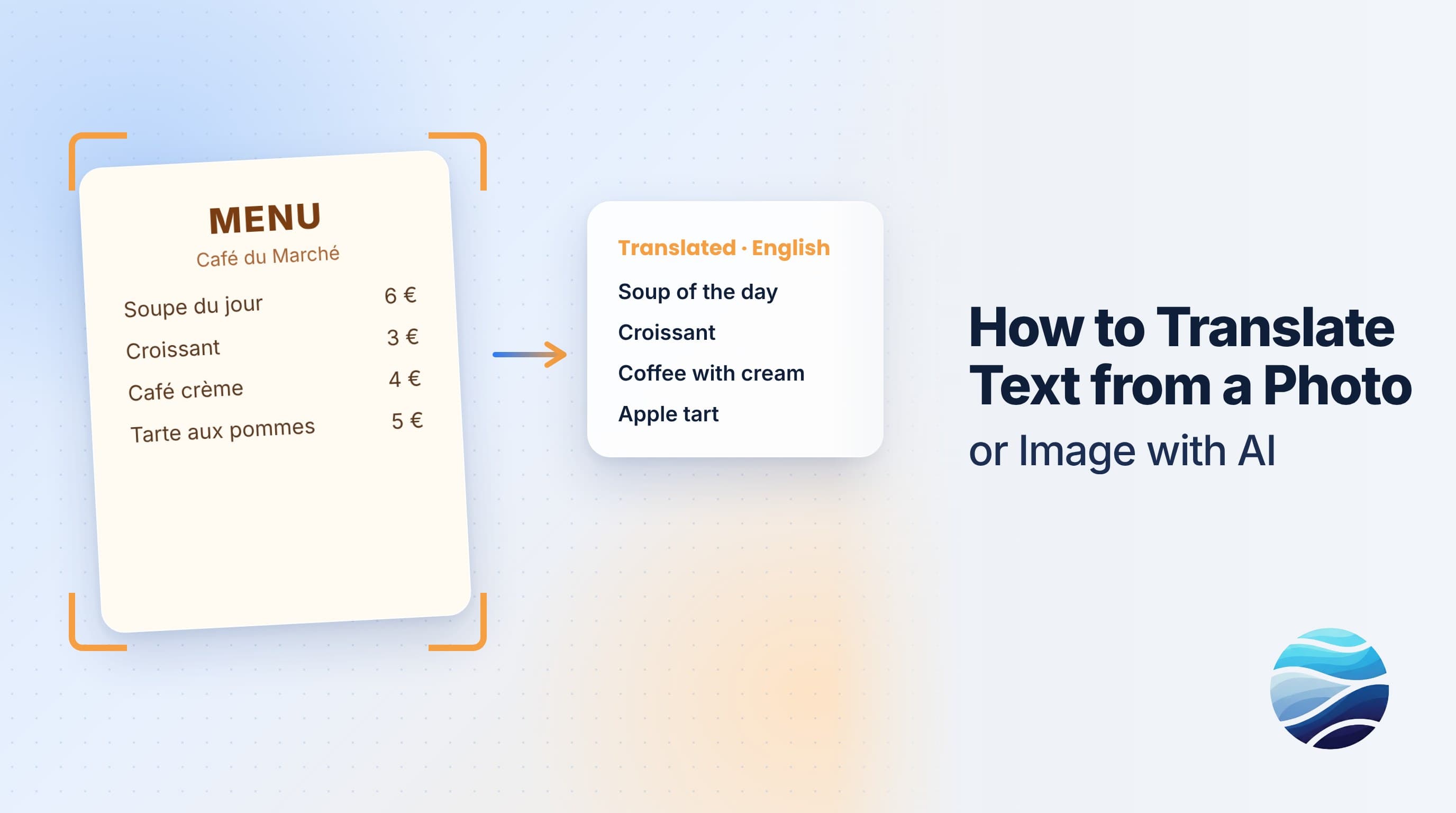
Short answer: To translate text in a picture with BhaShaVox, sign in and open Workspace → Image. Pick your languages, then click Upload Image, or Capture Image to take a photo with your camera. Click Extract Text to read the words in the picture, then Translate. You can download the translation as text or listen to it read aloud. It works in 125+ languages, including 20 Indian regional languages.
What it's good for
- Menus, signs and notices when you're travelling
- Forms, letters and printed notices in another Indian language
- Screenshots of chats, apps and social posts
- Product labels and packaging
- Textbook pages and handouts
Step 1: Open Image translation
- Sign in to BhaShaVox.
- In the left menu, under Workspace, click Image.
- At the top, choose the source language (the language in the picture) and the target language (the language you need).
Step 2: Add the picture
Choose one of two ways:
- Upload Image: choose a photo, scan or screenshot from your device.
- Capture Image: use your device's camera. Allow camera access when your browser asks, position the text in the frame, and capture. The camera is only used while the capture window is open.
Step 3: Extract the text
Click Extract Text. BhaShaVox reads the words in the picture with OCR (character recognition) and shows them under Extracted Text.
Glance over the result before translating. If a word was misread, the translation of that word will be wrong too.
Step 4: Translate
Click Translate. The result appears under Translation.
Step 5: Download or listen
- Open Download to save the extracted text and the translation as text files.
- Use Speak Translation to hear it, with a Natural voice or My voice (your cloned voice). This helps when you need to say a phrase out loud, for example to a shopkeeper or a driver.
Tips for a clean result
- Fill the frame with the text. Crop out what you don't need.
- Shoot straight on, not at an angle, so lines stay level.
- Use good light and avoid glare on glossy paper and screens.
- Hold steady, because a blurry photo means misread letters.
- One page at a time. For multi-page PDFs and scans, use Document translation instead: see How to Translate a PDF or Word Document with AI.
Honest limits
- Handwriting is much harder to read than print. Expect errors in cursive or rushed writing.
- Decorative fonts, tiny text and low light reduce accuracy.
- Text on busy backgrounds, such as patterned packaging or photos behind words, can be missed.
- Important documents like IDs, prescriptions and legal notices should be checked by someone who reads the original language.
FAQ
How do I translate text from a photo?
Open Workspace → Image, choose your languages, then upload the photo or use Capture Image. Click Extract Text, then Translate.
Can I use my phone camera?
Yes. Capture Image uses your device's camera after you allow access in your browser.
Can it read Indian languages in images?
Yes. It reads and translates text in 125+ languages, including Hindi, Tamil, Telugu, Bengali, Marathi and other Indian languages.
Can it translate handwriting?
Clear, printed-style handwriting often works. Cursive and rushed handwriting is much less reliable.
Can I hear the translation spoken?
Yes. Use Speak Translation with a natural voice or your own cloned voice.
What about a whole scanned document?
Use Workspace → Document. It handles PDFs and multi-page scans.
Ready to translate your first photo? Try Image Translation on BhaShaVox →