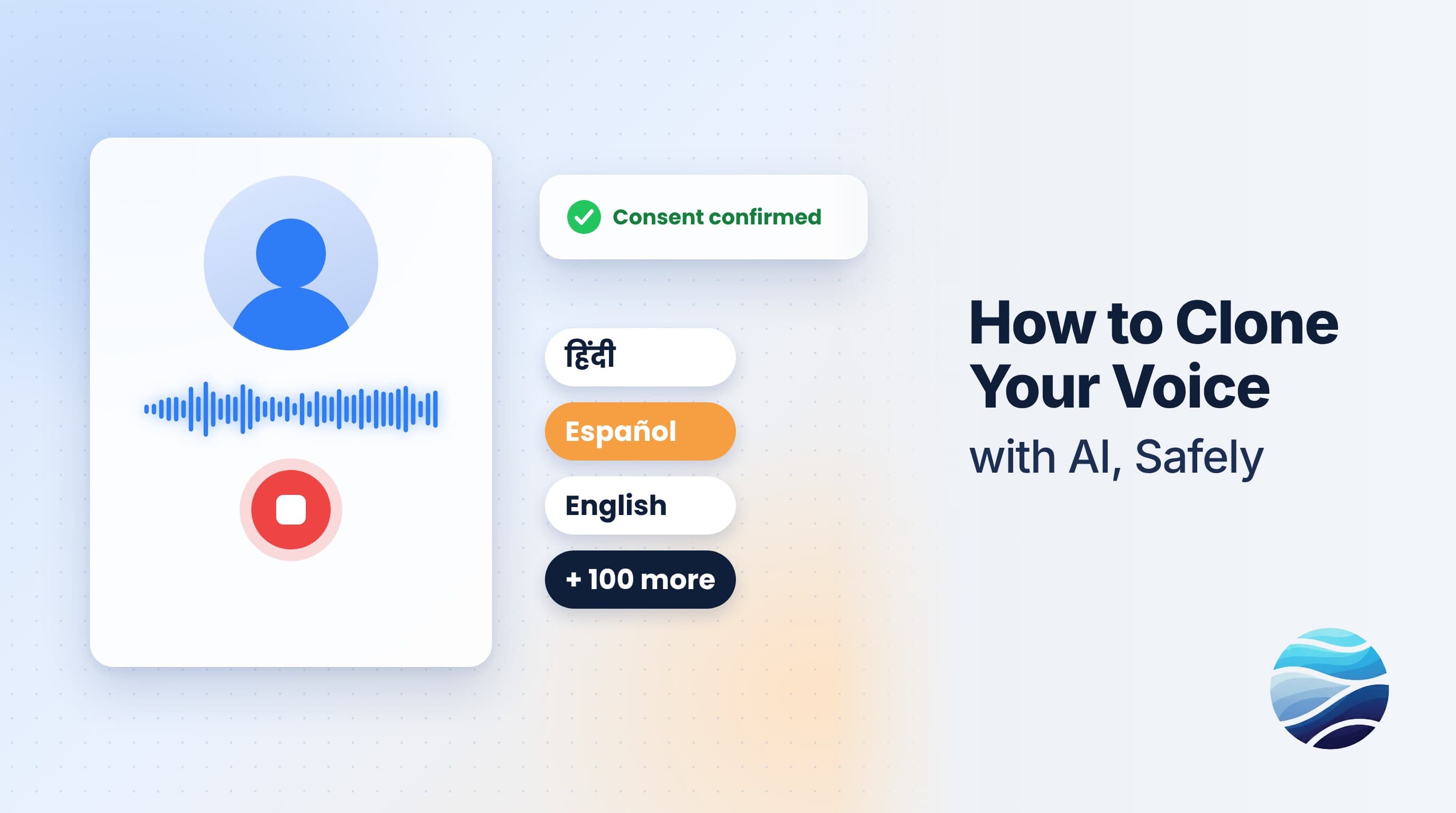
Short answer: To clone your voice with BhaShaVox, sign in and open My voices from the left menu. Click Add voice, name it, and record 30 seconds to 2 minutes of clear speech, or upload a recording. Confirm the consent statement and save. Then set it as active, and your voice is ready to use in Speech Generation, Video Studio, Audio Studio and the translation tools, in 100+ languages.
What a cloned voice is for
- Dub your own videos and podcasts so your audience hears you, not a stranger, in Hindi, Spanish or Tamil.
- Create voice-overs from typed text without recording every time.
- Keep a consistent brand voice across courses, ads and support content.
The one rule: consent
Only clone your own voice, or the voice of someone who has given you clear permission. Before you can save a voice, BhaShaVox asks you to confirm exactly that:
"I confirm this is my own voice, or I have the speaker's explicit permission to clone it, and I will not use it to impersonate anyone without their consent."
Cloning someone without permission is not a grey area: it can be fraud, defamation or a privacy violation. If in doubt, don't. Read more about consent-first voice cloning.
Before you record
- A quiet room. Soft furnishings help; bathrooms and empty halls echo.
- A decent microphone. A headset or phone mic held at a steady distance is fine. Avoid laptop mics on a noisy fan.
- A script to read. Natural, varied sentences work better than reading a list of words. A paragraph from a blog post or book is ideal.
- Your normal speaking voice. Speak the way you want the clone to sound, not louder or slower.
Step 1: Open My voices
- Sign in to BhaShaVox.
- In the left menu, click My voices.
Your voices lists every saved voice with its language, gender, source (Recorded, Uploaded or Library) and which one is active.
Step 2: Add a voice
- Click Add voice.
- Display name: for example "Shivam – narration".
- Pick the Language you'll mostly speak in and the Gender.
Step 3: Record or upload
Choose one of two ways:
- Record: click Start, read your script for 30 seconds to 2 minutes, then click Stop. Listen back, and use Record again if there was background noise.
- Upload: drag in or choose an existing recording (WAV, MP3, WebM, OGG or M4A). A clean podcast or voice-over clip of yourself works well.
If the clip is too short, BhaShaVox tells you how many more seconds it needs. Recordings over 120 seconds aren't accepted.
Step 4: Confirm consent and save
Tick the consent statement and save. Your voice appears in Your voices.
Step 5: Preview and set it as active
- Press Preview to hear how your clone sounds.
- Click Set as active to make it your default voice. The active voice is marked Active.
- You can keep several voices, for example one per language or style, and switch the active one any time. Remove any you no longer need.
Where to use your cloned voice
| Where | How |
|---|---|
| Speech Generation | Under How to speak, choose Voice clone → My voice |
| Video Studio | In Speakers & voices, set the voice type to My voice |
| Audio Studio | In Speakers & voices, set the voice type to My voice |
| Text, Document, Image and Voice | When listening to a translation, choose My voice instead of Natural |
Step-by-step guides: How to Convert Text to Speech in Hindi with AI · How to Dub a Video into Any Language with AI
Honest limits
- The sample decides the quality. Echo, music or a second voice in the sample will show up in the clone.
- Very emotional delivery (shouting, whispering, singing) is harder to reproduce than normal speech.
- Some words may sound slightly off in languages you don't speak yourself. Have a native speaker listen to anything important.
- Your voice is personal data. Delete voices you no longer use. See how we protect your data.
FAQ
How long should my voice sample be?
Record 30 seconds to 2 minutes of clear, natural speech. Longer clean samples usually give a closer match, and 120 seconds is the maximum.
Can I clone someone else's voice?
Only with their explicit permission. You must confirm consent before any voice is saved.
Can my cloned voice speak other languages?
Yes. Once saved, your voice can speak translations in 100+ languages, so your Hindi or Spanish dub still sounds like you.
Which audio formats can I upload?
WAV, MP3, WebM, OGG and M4A.
Can I have more than one cloned voice?
Yes. Save several in My voices and choose which one is Active.
How do I delete a cloned voice?
Open My voices and remove it from Your voices.
Ready to hear yourself in another language? Explore voice cloning on BhaShaVox →