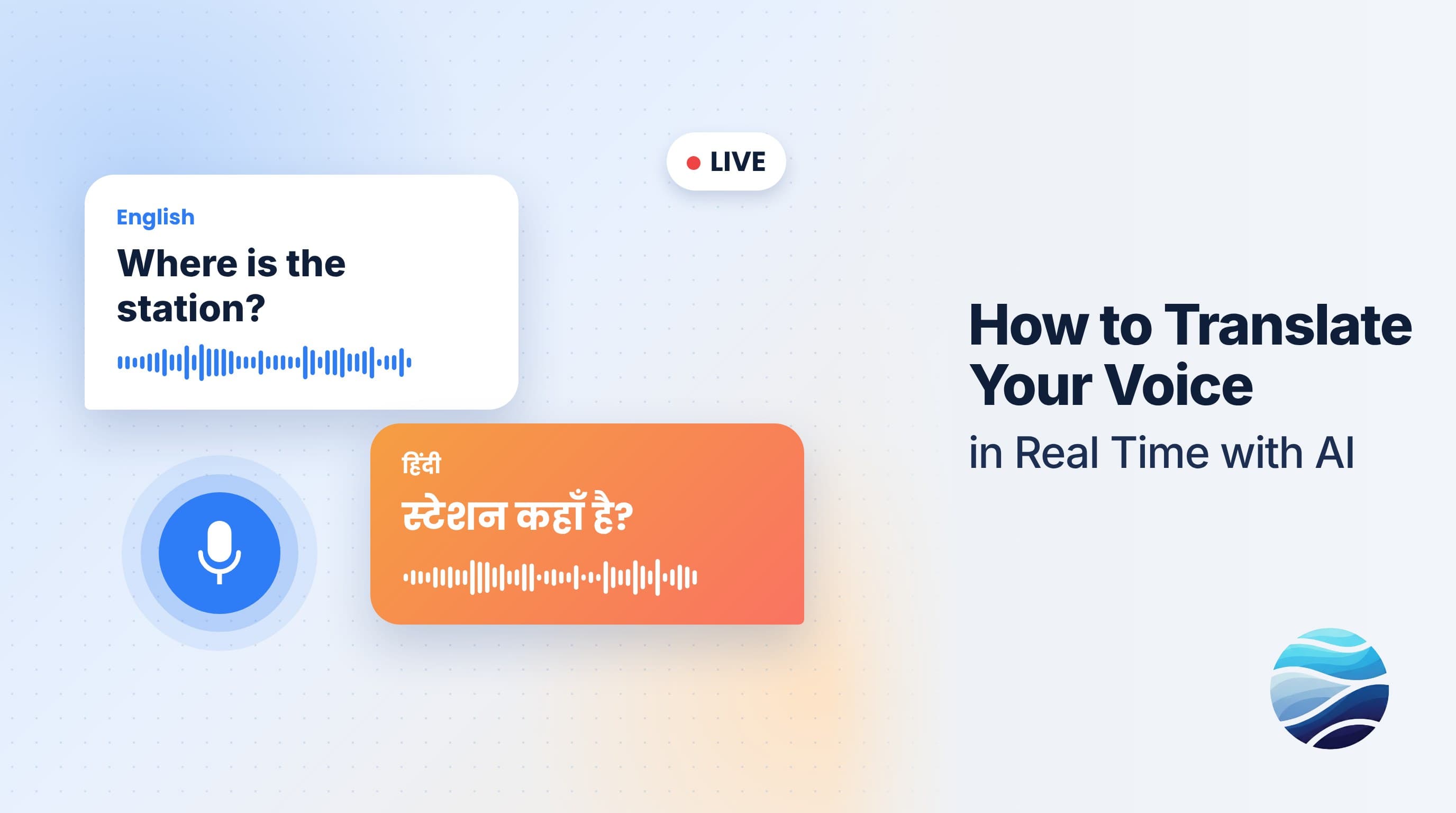
Short answer: BhaShaVox has two ways to translate speech as you talk, both under Workspace. Voice works turn by turn: press Start Recording, speak, press Stop Recording, and get the translation in text and speech. AutoTalk is hands-free: press Start Listening and keep talking, and each phrase is translated and read aloud as you go. Both work in 125+ languages, including 20 Indian regional languages.
Voice or AutoTalk: which one?
| Voice | AutoTalk | |
|---|---|---|
| How it works | Record one turn, then translate | Listens continuously and translates phrase by phrase |
| You press | Start / Stop Recording each time | Start Listening once |
| Best for | Short questions, practising a phrase, careful conversations | Longer explanations, tutoring, support calls, meetings |
Before you start
- Use Chrome, Edge or Safari on a secure (https) page. Microphone features need it.
- Allow microphone access when your browser asks.
- A quiet spot helps more than an expensive microphone.
Option 1: Voice (turn by turn)
- Sign in to BhaShaVox.
- In the left menu, under Workspace, click Voice.
- At the top, choose the language you'll speak and the language you need.
- Press Start Recording and speak naturally.
- Press Stop Recording. Your words appear under Voice Input, and the translation appears next to them.
- Press Speak Translation to hear it read aloud. Use Speak original text to replay what you said.
- Press New Recording for the next turn, or Translate Again after changing the languages.
Use Download to save the text or audio of a translation.
Option 2: AutoTalk (hands-free)
- In the left menu, under Workspace, click AutoTalk.
- Choose your languages at the top.
- Press Start Listening and talk normally. There's no need to press anything between sentences.
- As you finish each phrase, BhaShaVox translates it and reads it out. Each phrase appears as a message with its translation.
- Use Replay original text or Replay translation on any message, or Play all translated texts to hear the whole exchange again.
- Press Stop Listening to pause, and Start New Session to begin a fresh conversation.
Talking with another person
When the other person replies in their language, switch the two languages at the top before they speak. Then switch back for your turn.
Tips for smoother conversations:
- Speak in complete, short sentences and pause briefly between them.
- Avoid talking over each other. One voice at a time translates far better.
- Spell out names or say them slowly. They're the most common mistakes.
- Hear your own voice in the translation by cloning it first. See How to Clone Your Voice with AI Safely.
What people use it for
- Talking with customers, patients or clients who speak another language
- Tutoring and classes across languages
- Travel: asking directions, ordering, checking in
- Family conversations across generations and regions
- Practising pronunciation in a new language
Honest limits
- There's a short delay while each phrase is transcribed, translated and spoken. It's real-time, but not instant like a human interpreter.
- Background noise, strong accents and fast speech reduce accuracy.
- Slang and idioms may be translated too literally.
- For medical, legal or emergency situations, use a qualified human interpreter whenever you can.
FAQ
How do I translate my voice in real time?
Open Workspace → AutoTalk, choose your languages, and press Start Listening. Each phrase you speak is translated and read aloud. For turn-by-turn translation, use Workspace → Voice.
What's the difference between Voice and AutoTalk?
Voice translates one recorded turn at a time. AutoTalk listens continuously and translates phrase by phrase, hands-free.
Can it translate a two-person conversation?
Yes. Switch the languages at the top when the other person takes their turn.
Why isn't my microphone working?
Allow microphone access in your browser, use a secure (https) page, and check that no other app is using the mic.
Can the translation be spoken in my own voice?
Yes. Save your voice under My voices, then choose My voice when playing translations.
Which languages are supported?
125+ languages, including 20 Indian regional languages such as Hindi, Tamil, Telugu, Bengali, Marathi and Kannada.
Ready to talk across languages? Try AutoTalk on BhaShaVox →
Also see: Voice mode · AI translation for customer support