Short answer: To translate a document with BhaShaVox, sign in and open Workspace → Document. Pick your source and target languages, then click Upload Document and choose your PDF, Word, PowerPoint or text file. Click Extract Text to pull out the words, then Translate. Download the translated text, or listen to it read aloud. It works in 125+ languages, including 20 Indian regional languages.
Which files you can translate
| File type | Formats |
|---|---|
| Documents | PDF, Word (.docx), PowerPoint (.pptx), RTF |
| Plain text | TXT, Markdown (.md) |
| Scans and photos of pages | JPG, PNG and other image files |
Files can be up to 100 MB. Older Word files (.doc) aren't supported: open them in Word and save as .docx first.
Step 1: Open Document translation
- Sign in to BhaShaVox.
- In the left menu, under Workspace, click Document.
- At the top, choose the source language (the document's language) and the target language (the language you need).
Step 2: Upload your document
Click Upload Document and choose your file. A Document Preview shows what you uploaded, so you can check it's the right file before you start.
Step 3: Extract the text
Click Extract Text. BhaShaVox pulls the words out of the file and shows them under Extracted Text.
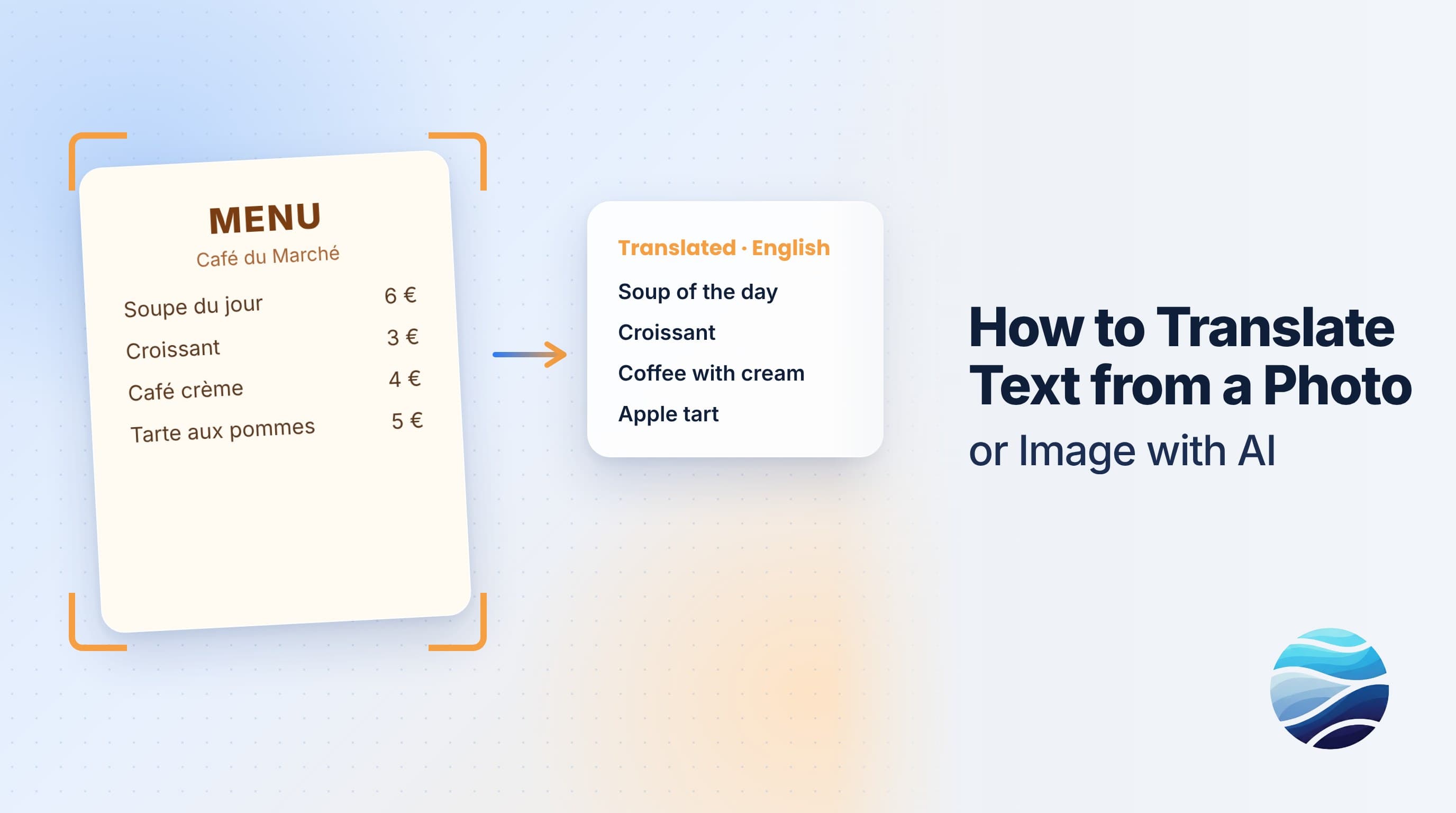
For scanned pages and photos, BhaShaVox reads the text with OCR (character recognition). If some pages were hard to read, you'll see a warning: "Some pages had low OCR confidence." Check the extracted text before relying on the translation. Blurry scans, handwriting and fancy fonts are the usual causes.
Step 4: Translate
Click Translate. Long documents are processed as a job with a progress bar, and you can cancel it if you picked the wrong language. The result appears under Translation.
Read it through once. AI translation is fast and usually accurate, but names, legal terms and numbers deserve a second look.
Step 5: Download or listen
Open Download to save:
- Download translated text: the translation as a .txt file.
- Download extracted text: the original wording as text, which is useful for checking.
To hear it, use Speak Translation and choose Natural or My voice (your cloned voice). Generate Voice creates an audio file you can download, which is handy for audio versions of notices, letters and study material.
Getting the translation back into your layout
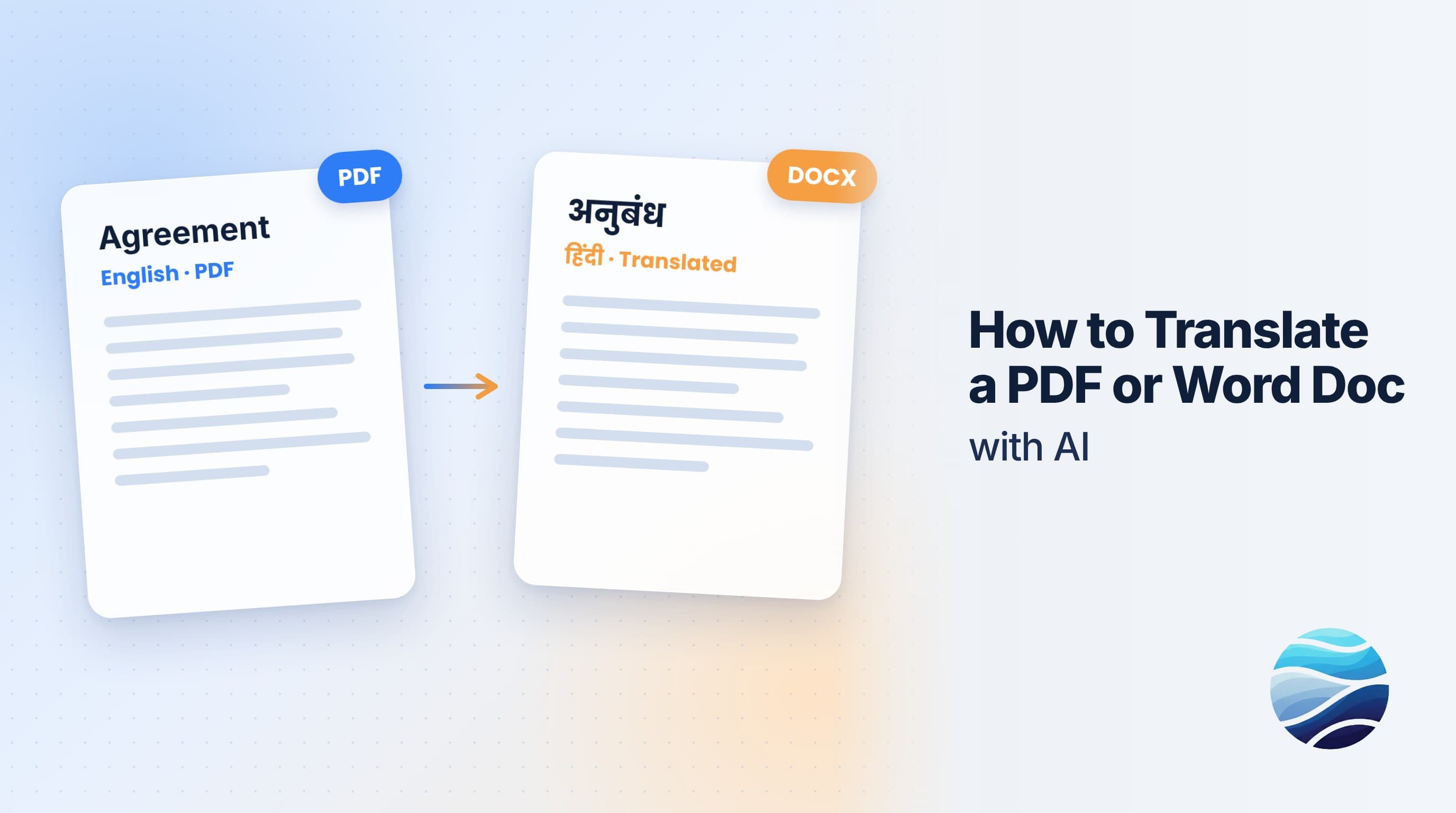
Document mode gives you the translated text. It doesn't rebuild a copy of your original file's design. For a finished document, paste the translation into your template, or into a copy of the original file, and fix line breaks and table cells there.
Tip: translate section by section for long reports. Shorter files are quicker to check and easier to paste back into your layout.
What people use it for
- Contracts, agreements and policies, as a first draft before legal review
- Reports, manuals and product documentation
- Government forms, notices and letters in Indian languages
- Course notes, research papers and study material
- Presentations (.pptx) for teams in other countries
Honest limits
- Legal, medical and financial documents need a qualified human review before anyone relies on them.
- Layout isn't preserved. You get clean translated text, not a re-formatted copy of your file.
- Scan quality matters. A crisp, straight scan reads far better than a phone photo at an angle.
- Tables come out as text, so check that rows still line up after translation.
FAQ
How do I translate a PDF into another language?
Open Workspace → Document, choose your languages, click Upload Document, then Extract Text and Translate. Download the translated text when it's done.
Can I translate a Word document?
Yes. .docx files are supported. Save older .doc files as .docx first.
Can it translate scanned PDFs?
Yes. BhaShaVox reads scanned pages with OCR and warns you when some pages were hard to read.
Does it keep the original formatting?
You get the translated text, not a re-designed copy of the file. Paste it into your original layout for a finished document.
What's the maximum file size?
100 MB per file.
Can I listen to the translation?
Yes. Use Speak Translation with a natural voice or your own cloned voice, or Generate Voice to download the audio.
Ready to translate your first document? Try Document Translation on BhaShaVox →
Translating text from a photo instead? See How to Translate Text from an Image or Photo.