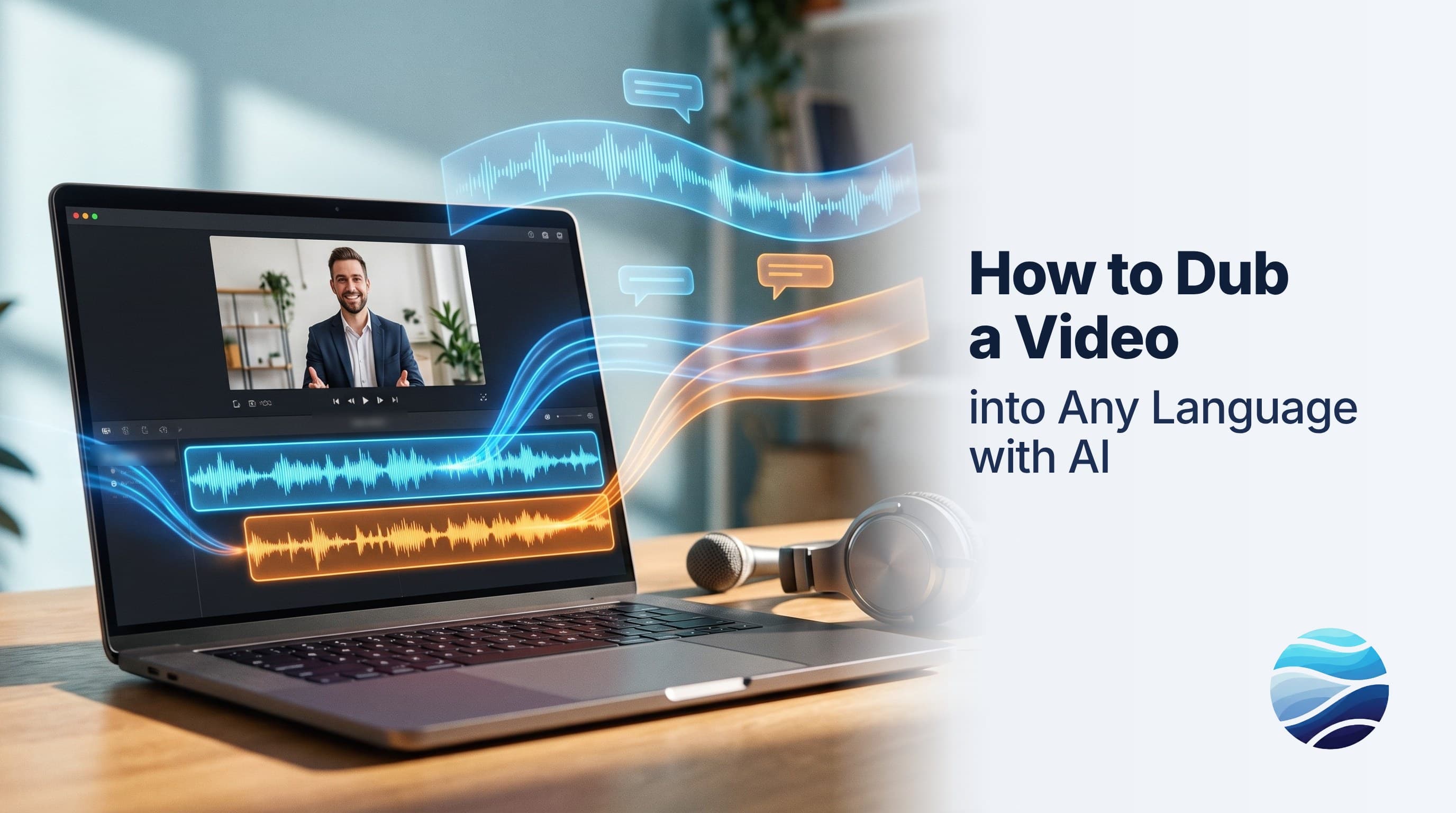
Short answer: To dub a video with BhaShaVox, sign in and open Studio → Video Studio. Click New video, choose Captions or dubbing, pick your source and target languages, and upload the video. BhaShaVox creates a timed script and translates it. You pick a voice for each speaker, style the captions, and download the dubbed video. It works in 125+ languages, including 20 Indian regional languages.
Before you start
- A BhaShaVox account. The free trial is enough to dub your first video.
- Your final video edit, in MP4, WebM, MOV, AVI or MKV. Dub the finished cut: any change to the edit afterwards means re-timing the lines.
- Clear speech. Heavy music or people talking over each other makes the script harder to create.
Step 1: Open Video Studio
- Sign in to BhaShaVox.
- In the left menu, under Studio, click Video Studio.
- Click New video.
The Video Studio home page lists Your videos: every project with its type (Transcript, Captions or Dubbing), its status (Draft, In progress or Ready) and when it was last updated.
New video opens a 6-step wizard: Add video → Review script → Translate → Speakers & voices → Output & style → Preview & download.
Step 2: Add your video
- Project name: give it a clear name (up to 48 characters), for example "Product demo – Hindi".
- What do you need? Choose Captions or dubbing. The other two options are for script-only jobs: Original script (a transcript of your video) and Translated script (translate and download the text, no video).
- Content type: choose Spoken for talking, interviews and lessons. Choose Music / song for music videos, so repeated lyrics are kept as sung.
- Source Language → Target Language: for example, English → Hindi.
- Detect multiple speakers automatically: tick this if more than one person speaks, so each line is tagged Speaker 1, Speaker 2 and so on. Leave it off for a single speaker; it is faster.
- Drop your video into Add your video, or click Upload video, then click Continue.
Already have subtitles? Click Upload script to load an .srt file instead of creating the script from the audio.
Step 3: Review the script
BhaShaVox turns the speech into a timed script under Original words. Each line shows its speaker, its start and end time, and its text.
- Switch between By line and Full text to read it the way you prefer.
- Fix names, product terms and anything that was misheard.
- Drag lines to reorder them, use Add line for anything missed, or click Create script again.
- Click Original to download the script.
Take two minutes here. Every mistake left in the script carries into the translation, the voice and the captions.
Step 4: Translate
Choose Translate script to translate into your target language. If you only want captions or a dub in the same language, choose Keep original.
- Switch between Original and Translated to compare them line by line, and edit any translated line.
- Use Re-Translate if you changed the original script.
- Download either version with the Original and Translated buttons.
Tip: shorten long translated lines rather than letting them run. Hindi, Tamil and German often need more words than English, and shorter lines sound more natural when dubbed. Dubbing YouTube videos into Hindi specifically? See How to Dub a YouTube Video into Hindi.
Step 5: Choose speakers and voices
Each speaker gets a Voice type:
| Voice type | What it does |
|---|---|
| Voice from audio | Uses the speaker's own voice from this video, so they sound like themselves in the new language |
| Natural voice | High-quality AI speech, without cloning anyone |
| Library | A character voice from the voice library |
| My voice | A voice you saved under My voices on your dashboard |
| Upload | An audio sample you upload to use as the voice |
Press Play to hear a sample, and rename speakers if you like (for example "Speaker 1" → "Priya").
Only use someone's voice with their permission, including co-presenters and actors in your video. Read more about consent-first voice cloning and how we protect your data.
Step 6: Output & style
Dubbing mode:
- Translated only: the new language replaces the original speech.
- Original only: re-voices the original-language script.
- Both (soft): keeps the original audio and adds a dubbed track viewers can switch between.
- Off: captions only.
When dubbing is on, you can also set Keep background (mix the original music and sound effects under the new voice) and Voice timing. On timeline starts each line at its original time and suits most videos; Continuous plays speech blocks one after another.
Subtitle mode:
- Always on · Translated or Always on · Original: captions burned into the video.
- On / off: a caption track viewers can switch on.
- Both: a switchable track plus a burned-in download.
- Off: dub only.
Caption style: set the font, size, position (Bottom, Middle or Top), text colour, background and opacity, outline, and margin from the edge. Tick Show speaker names to show "Priya: …" before each line.
The preview uses the same engine as the final video, so what you see is what you get. Click Generate.
Tip: if your video already has captions or text near the bottom, set Position to Top or increase Margin from edge, so the new captions don't cover them.
Step 7: Preview and download
Watch the dubbed video in Preview & download. Long videos can take a while. The job keeps running if you leave, and the project shows Ready in Your videos when it is done.
Open Download files to get:
- the generated (dubbed) video and the original video;
- the original and translated scripts;
- caption files: original, translated and dubbed (.srt).
Dubbing, voice-over or subtitles: which do you need?
| Option | What the viewer gets | Best for |
|---|---|---|
| Subtitles | Original audio plus translated text | Social clips watched on mute, low budgets |
| Voice-over | A narrator over the original audio | Interviews, documentaries |
| Dubbing | The speech fully replaced, line by line | Training, courses, marketing, entertainment |
BhaShaVox does subtitles and dubbing in one project. Many teams ship both: a dubbed version plus caption files for accessibility. Turning a course into other languages? See video dubbing for e-learning.
Honest limits
- Names, brands and jargon are the most common script errors. Check them in step 3.
- Jokes and idioms often need rewriting, not just translating.
- Noisy audio, such as loud music under speech or crosstalk, makes the script less accurate.
- Lip movements stay as they were. Natural, well-timed lines matter most in close-up shots.
- Always watch the final video once before you publish, especially for legal, medical or ad content.
FAQ
How do I dub a video into another language with AI?
Sign in to BhaShaVox and open Studio → Video Studio. Click New video, choose Captions or dubbing, pick the languages and upload. Then review the script, translate it, pick voices, style the captions and download.
Can the dubbed voice sound like the original speaker?
Yes. Choose Voice from audio in Speakers & voices to use the speaker's own voice from the video, with their permission.
Can I keep the background music?
Yes. Turn on Keep background in Output & style to mix the original music and sound effects under the new voice.
Can viewers switch between the original and dubbed audio?
Yes. Choose Both (soft) as the dubbing mode.
Can I dub a video with several speakers?
Yes. Tick Detect multiple speakers automatically in step 1, then give each speaker their own voice.
What files can I download?
The dubbed video, the original video, the original and translated scripts, and .srt caption files.
Which languages are supported?
125+ languages, including 20 Indian regional languages such as Hindi, Tamil, Telugu, Bengali and Marathi.
Ready to dub your first video? Open Video Studio on BhaShaVox →