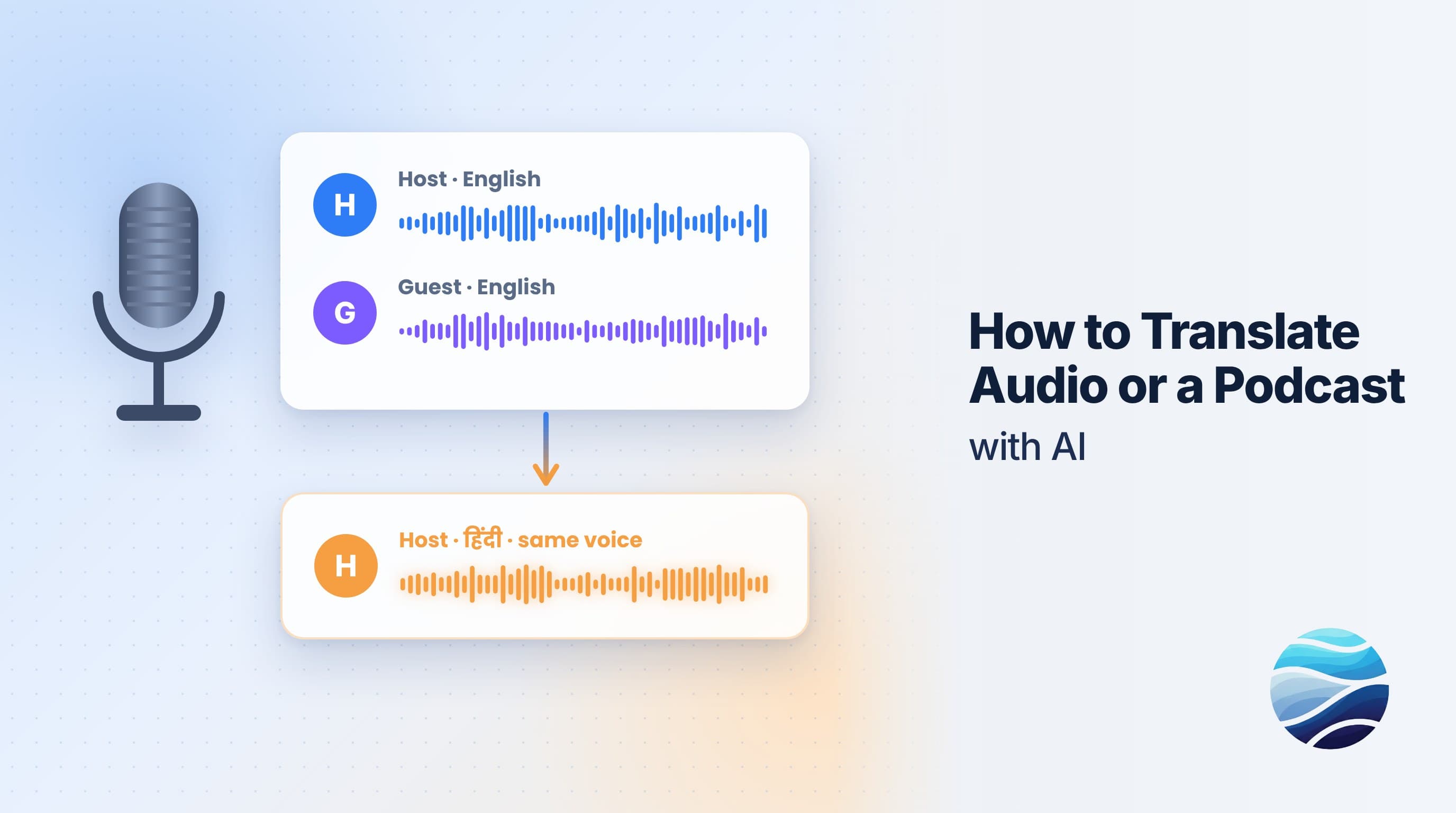
Short answer: To translate audio or a podcast with BhaShaVox, sign in and open Studio → Audio Studio. Click New audio and upload your file. BhaShaVox creates a timed script, which you can translate. Download the transcript or translation, or continue to dub every speaker into the new language. It works in 125+ languages, including 20 Indian regional languages.
What you can make from one audio file
In step 2, under What do you need?, choose one of three options:
| Option | What you get | Good for |
|---|---|---|
| Original script | A timed transcript of your audio | Show notes, blog posts, captions, search |
| Translated script | The transcript translated into another language, as text | Translated show notes, subtitles, review |
| Dubbing | A new audio file with every speaker voiced in the new language | Podcasts, voice-overs, audio courses, interviews |
Before you start
- Your final edit, in MP3, WAV, M4A, AAC, OGG or FLAC. Dub the finished episode: cutting it afterwards means re-timing the lines.
- Clean speech. Music under the voices, echo, or people talking over each other all make the transcript less accurate.
- Permission from every guest whose voice you plan to reuse.
Step 1: Open Audio Studio
- Sign in to BhaShaVox.
- In the left menu, under Studio, click Audio Studio.
- Click New audio.
Your audio lists every project with its status. New audio opens a 6-step wizard: Add audio → Review script → Translate → Speakers & voices → Output → Preview & download.
Step 2: Add your audio
- Project name: for example "Episode 12 – Hindi".
- What do you need? Choose Dubbing for a translated episode, or one of the script options for text only.
- Content type: Spoken for podcasts and voice-overs.
- Source Language → Target Language: for example, English → Hindi.
- Detect multiple speakers automatically: tick this for interviews and multi-host shows, so each line is tagged Speaker 1, Speaker 2 and so on. Leave it off for a solo show; it's faster.
- Drop in your file, or click Upload audio, then Continue.
Already have a transcript with timings? Click Upload script to load an .srt file instead.
Step 3: Review the script
The timed script appears line by line, with each line's speaker and time.
- Fix names, brands and anything misheard. These are the most common errors.
- Use Add line, reorder lines by dragging, or Create script again.
- Download the transcript with Original. This alone gives you show notes.
Step 4: Translate
Choose Translate script (or Keep original to re-voice in the same language). Compare Original and Translated line by line and edit anything that sounds stiff. Use Re-Translate after changing the original.
Tip: spoken language is shorter than written language. Trim long translated lines so the dub keeps pace with the original.
Step 5: Give each speaker a voice
| Voice type | What it does |
|---|---|
| From this audio | Uses that speaker's own voice from the recording, so hosts sound like themselves |
| Natural voice | High-quality AI speech, with no cloning |
| Library | A ready-made voice from the voice library |
| My voice | Your own cloned voice, saved under My voices |
| Upload | A short sample you upload to base the voice on |
Natural and Library voices must match the language being spoken. My voice, Upload and From this audio work in any language. Press Play to hear a sample, and rename speakers (for example "Speaker 2" → "Guest").
Step 6: Output
- Which script to speak: Translated (default) or Original.
- Keep background: On keeps intro music and sound effects under the new voices where possible. Off gives you voice only.
- Voice timing: On timeline places each line at its original time. Continuous joins speech blocks one after another, which suits narration with long pauses.
- Click Generate dubbed audio. Long episodes can take a while. You can leave, and the project shows Ready when it's done.
Step 7: Preview and download
- Switch Voice between Original and Dubbed to compare a section.
- Turn on Synced lyrics to follow the script while you listen.
- Open Download files for the dubbed audio, the original audio, and the original and translated scripts.
Honest limits
- Crosstalk (two people talking at once) is the hardest thing for any transcription. Expect to fix those lines.
- Jokes, slang and idioms need rewriting, not just translating.
- Listen to the whole episode once before you publish. AI gets most lines right, and a human catches the rest.
FAQ
How do I translate a podcast into another language?
Open Audio Studio, click New audio, choose Dubbing, set the languages, and upload the episode. Then review the script, translate it, give each speaker a voice, and click Generate dubbed audio.
Can I just get a transcript of my audio?
Yes. Choose Original script under What do you need?, and you'll get a timed transcript you can download.
Can my guests keep their own voices?
Yes, with their permission. Choose From this audio for each speaker in Speakers & voices.
Can I keep my intro music?
Yes. Turn on Keep background in the Output step.
Which audio formats are supported?
MP3, WAV, M4A, AAC, OGG and FLAC.
Which languages are supported?
125+ languages, including 20 Indian regional languages such as Hindi, Tamil, Telugu, Bengali and Marathi.
Ready to translate your first episode? Try Audio Studio on BhaShaVox →
Also see: AI translation for podcasting · How to Clone Your Voice with AI Safely