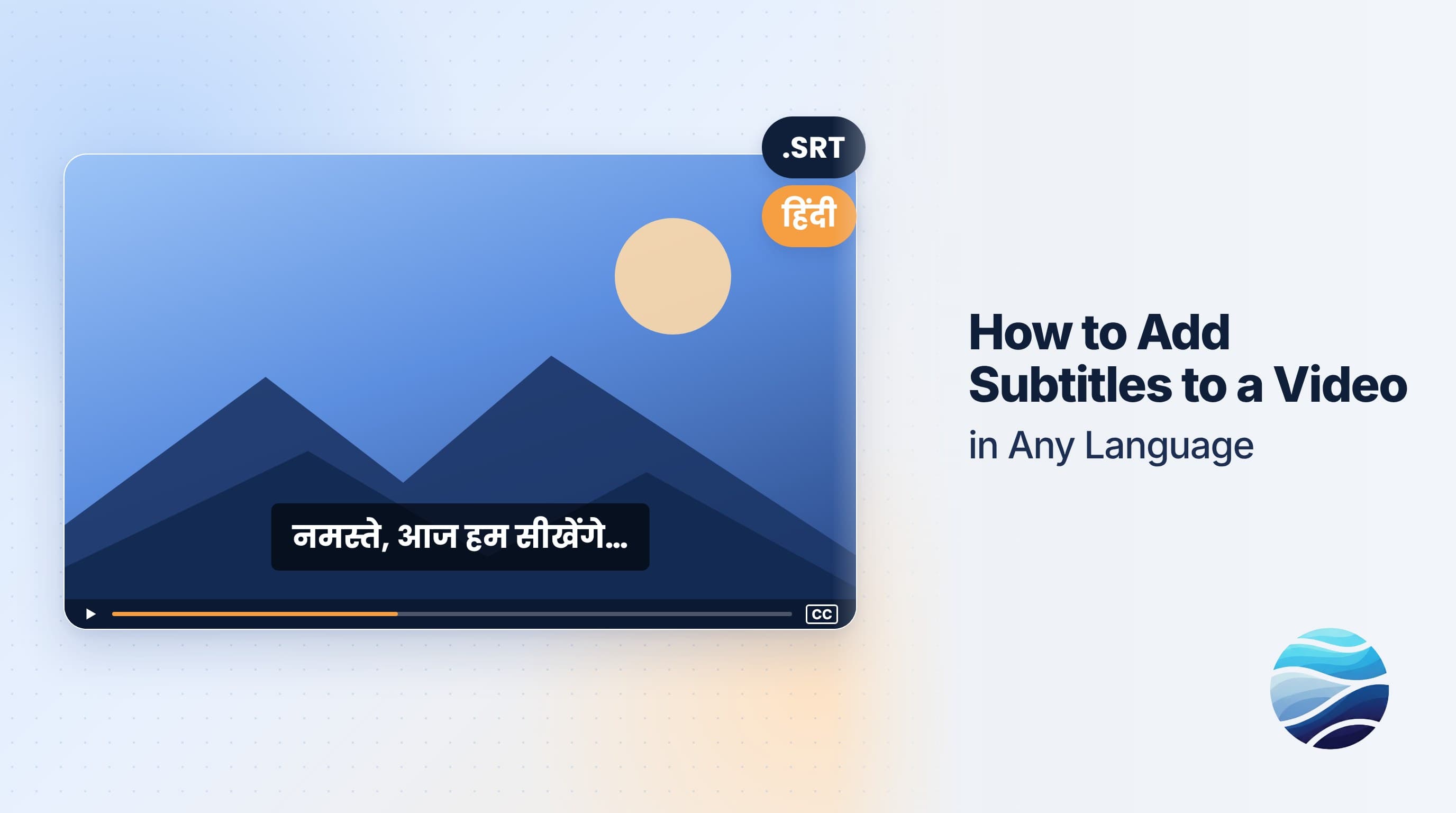
Short answer: To add subtitles with BhaShaVox, sign in and open Studio → Video Studio. Click New video, choose Captions or dubbing, pick the languages and upload your video. BhaShaVox creates a timed script, which you check and translate. In Output & style, set Dubbing mode to Off and choose a Subtitle mode. Then click Generate and download the captioned video and the .srt files. It works in 125+ languages, including 20 Indian regional languages.
Burned-in or switchable subtitles?
| Subtitle mode | What viewers get | Best for |
|---|---|---|
| Always on · Translated | Translated captions burned into the picture | Instagram, Reels, Shorts, WhatsApp: anywhere captions can't be switched on |
| Always on · Original | Same-language captions burned in | Accessibility, and videos watched on mute |
| On / off | A caption track viewers can turn on or off | YouTube-style players, courses, OTT |
| Both | A switchable track plus a burned-in download | When you need both versions |
Step 1: Open Video Studio
- Sign in to BhaShaVox.
- In the left menu, under Studio, click Video Studio.
- Click New video.
The wizard has 6 steps: Add video → Review script → Translate → Speakers & voices → Output & style → Preview & download.
Step 2: Add your video
- Project name: for example "Webinar – Tamil subtitles".
- What do you need? Choose Captions or dubbing.
- Content type: Spoken for talks, films and lessons; Music / song for music videos.
- Source Language → Target Language: for example, English → Tamil. For same-language captions, pick the same language on both sides.
- Tick Detect multiple speakers automatically if several people speak and you want speaker names in the captions.
- Upload the video (MP4, WebM, MOV, AVI or MKV) and click Continue.
Already have subtitles in one language? Click Upload script and load your .srt file. BhaShaVox can then translate it, so you don't need to create the script from the audio.
Step 3: Review the script
The timed script appears line by line. Captions are read, not heard, so every typo shows. Fix names and misheard words, and use Add line for anything missing.
Step 4: Translate
Choose Translate script, or Keep original for same-language captions. Compare Original and Translated line by line.
Tip: keep caption lines short. Viewers read about 15–20 characters a second, so long lines flash past before they can be read.
Step 5: Speakers & voices
You only need voices for dubbing. For subtitles-only projects, just click Next. If you'd like speaker names in your captions, rename the speakers here (for example "Speaker 1" → "Dr. Rao").
Step 6: Output & style
- Dubbing mode: Off (subtitles only).
- Subtitle mode: pick one from the table above.
- Caption style: set the font, font size, position (Bottom, Middle or Top), text colour, background and its opacity, outline colour and width, and margin from the edge.
- Tick Show speaker names to add "Dr. Rao: …" before each line.
The preview uses the same engine as the final video, so what you see is what you'll get. Click Generate.
Tip: if your video already has text near the bottom, such as lower-thirds or burned-in captions, move your subtitles to Top or increase Margin from edge.
Step 7: Download
In Preview & download, open Download files to get:
- the captioned video;
- Original captions (.srt) and Translated captions (.srt) for YouTube, Vimeo, LMS platforms and video editors;
- the original and translated scripts.
Want a full voice dub as well as subtitles? Use the same project with a dubbing mode turned on. See How to Dub a Video into Any Language with AI.
Honest limits
- Check every caption once. On-screen mistakes are more visible than spoken ones.
- Fast speech makes long captions. Split or shorten lines so they stay readable.
- Music and crosstalk reduce transcription accuracy.
- Long films take longer to process. You can leave, and the project shows Ready when it's done.
FAQ
How do I add subtitles to a video in another language?
Open Video Studio, click New video, choose Captions or dubbing and pick your languages. Upload the video, check and translate the script, set Dubbing mode to Off, choose a Subtitle mode, and click Generate.
Can I get an .srt file?
Yes. Download files includes the original and translated captions as .srt files.
Can I translate subtitles I already have?
Yes. Click Upload script in step 1 to load your .srt file, then translate it.
What's the difference between burned-in and soft subtitles?
Burned-in (Always on) captions are part of the picture and always show. Soft (On / off) captions are a separate track viewers can switch on or off.
Can I change the subtitle font and colour?
Yes. In Output & style, set the font, size, position, colours, background, outline and margin.
Which languages are supported?
125+ languages, including 20 Indian regional languages such as Hindi, Tamil, Telugu, Bengali and Marathi.
Ready to subtitle your first video? Try Video Studio on BhaShaVox →
Working with films and long-form video? See subtitles for movies.